 orkiva
 Container terminal#
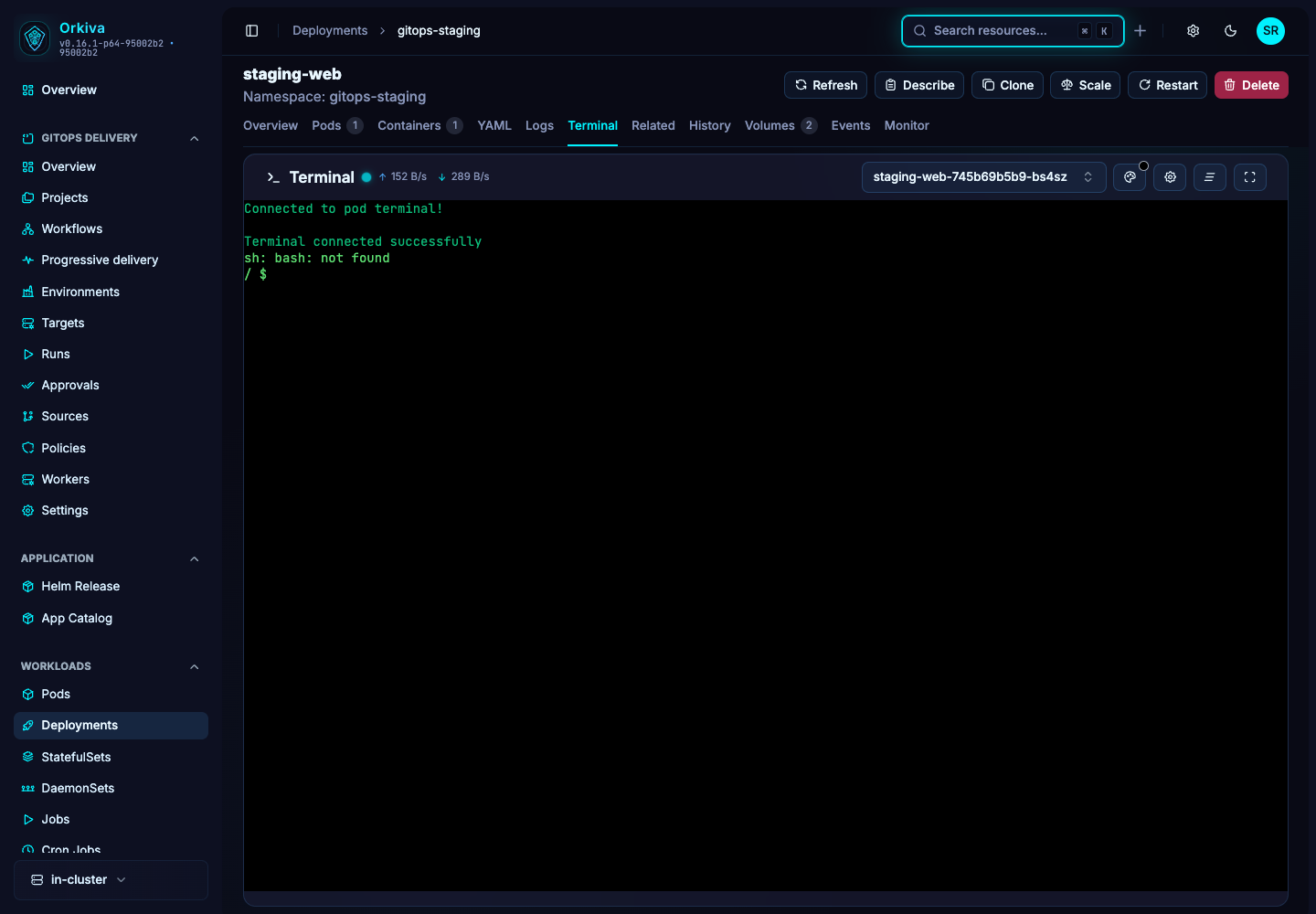
- Open the Pod detail page and select Terminal. For a workload-level terminal, first choose the intended pod and container.
- Wait for the connection to establish. Run a read-only command such as pwd to confirm the container context before making changes.
- Use the shell for the task you intend, then close the terminal when finished. Commands run inside the selected container with that container’s available tools and user context.
An image without a shell cannot provide a normal interactive shell just because the Terminal tab exists. Permission to view a pod is separate from permission to execute commands.
Cluster and node terminals#
The cluster kubectl terminal and node terminal are separate administrative capabilities. They depend on administrator settings, the configured helper images and Kubernetes permissions. The node terminal operates through a helper on the selected node; treat it as a higher-impact operation than viewing a pod.
If the terminal entry is absent, ask the administrator whether that feature is enabled. If creation fails, check the helper image, image-pull access, service account and cluster policy. A Cluster Agent using an inventory profile does not automatically have terminal capabilities.
Browse, upload and download files#
- Open a Pod and choose Files. Select the relevant container.
- Use the current-path field, parent directory or home control to locate the directory. Refresh if the filesystem changed.
- Open a directory to navigate, preview a supported file, or download a file with the available action.
- To upload, choose the local file through the upload control and verify the destination path before submitting. Confirm the result in the refreshed listing.
The file browser acts on the running container filesystem. It is not a persistent-volume backup tool. The container must provide the required filesystem/exec behavior, and its filesystem permissions still apply.
Connection failures#
Check the current session, pod/container state, allowed exec permission and WebSocket support through your proxy. If a pod was replaced, reopen the terminal against the new pod instead of expecting the old connection to migrate.