 orkiva
 Create a resource#
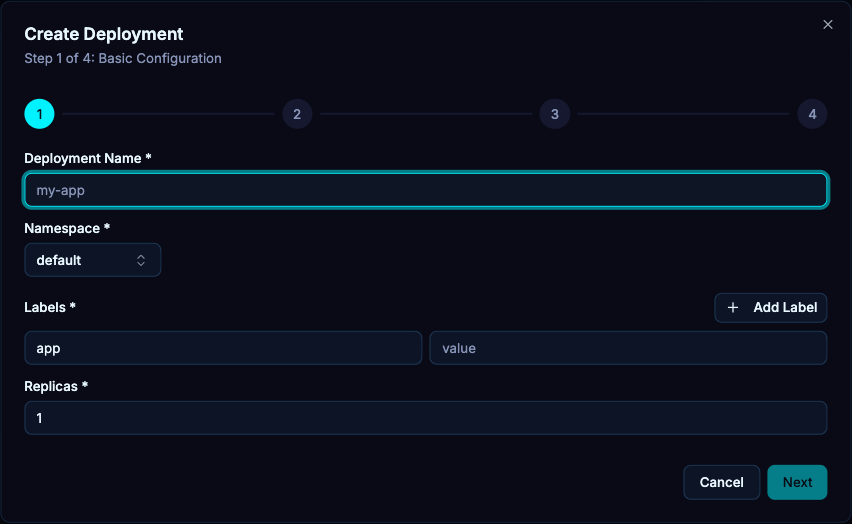
- Select the cluster and namespace where the object should exist. Open the appropriate resource list and choose New, or use the app’s create-resource control.
- Choose an available template or enter a manifest. Check apiVersion, kind, metadata.name and metadata.namespace. Use the resource-specific form when that page provides one.
- Review the entire manifest before applying it. A namespace in the manifest must agree with your intended destination.
- Submit, then open the created resource. Inspect Events and status to confirm that the cluster accepted and reconciled it.
Kubernetes admission, API availability and the connection’s permissions still apply. A successfully submitted object can later report an unhealthy runtime state.
Edit YAML and inspect changes#
Open the object’s detail page and its YAML editor. Review the current document, edit the intended fields, then save through the editor. A rejected edit should be corrected from the returned error; repeatedly resubmitting an immutable-field change does not make it valid.
For resources managed by GitOps or Helm, a direct edit can diverge from the declared source and may later be overwritten. Update the owning source when you want the change to persist through future reconciliation.
Describe, history and clone#
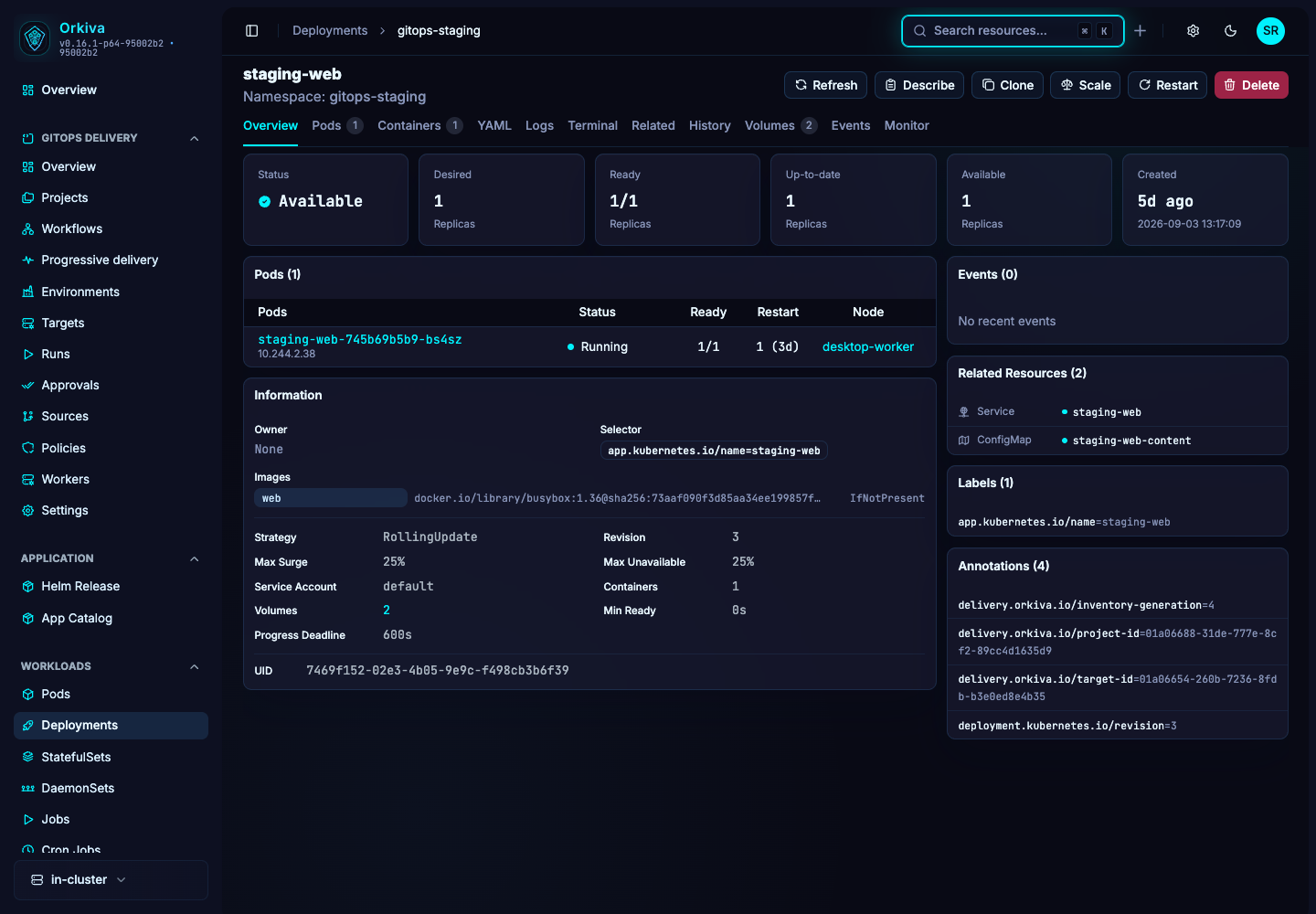
- Describe: inspect the expanded resource description without mutating it.
- History: where the resource exposes it, review recorded changes. Orkiva history is not a backup of every external system or an automatic restore of application data.
- Clone: review the generated copy, choose a new identity and destination, and remove source-specific settings that should not transfer. A clone is a new object; it does not move the original.
Delete and batch actions#
- For a single object, open Delete and confirm the identity in the dialog.
- For a batch, select the intended rows and open the batch action. Inspect the selection before confirming.
- After submission, inspect the outcome for each item. A partial failure means some objects may already have changed.
- Refresh the list. If a deleted workload returns, inspect its owner; a controller may recreate it.
Deleting a Kubernetes object can affect related workloads and storage. The UI confirmation does not guarantee that all dependent data will remain recoverable.