 orkiva
 Choose a cluster first#
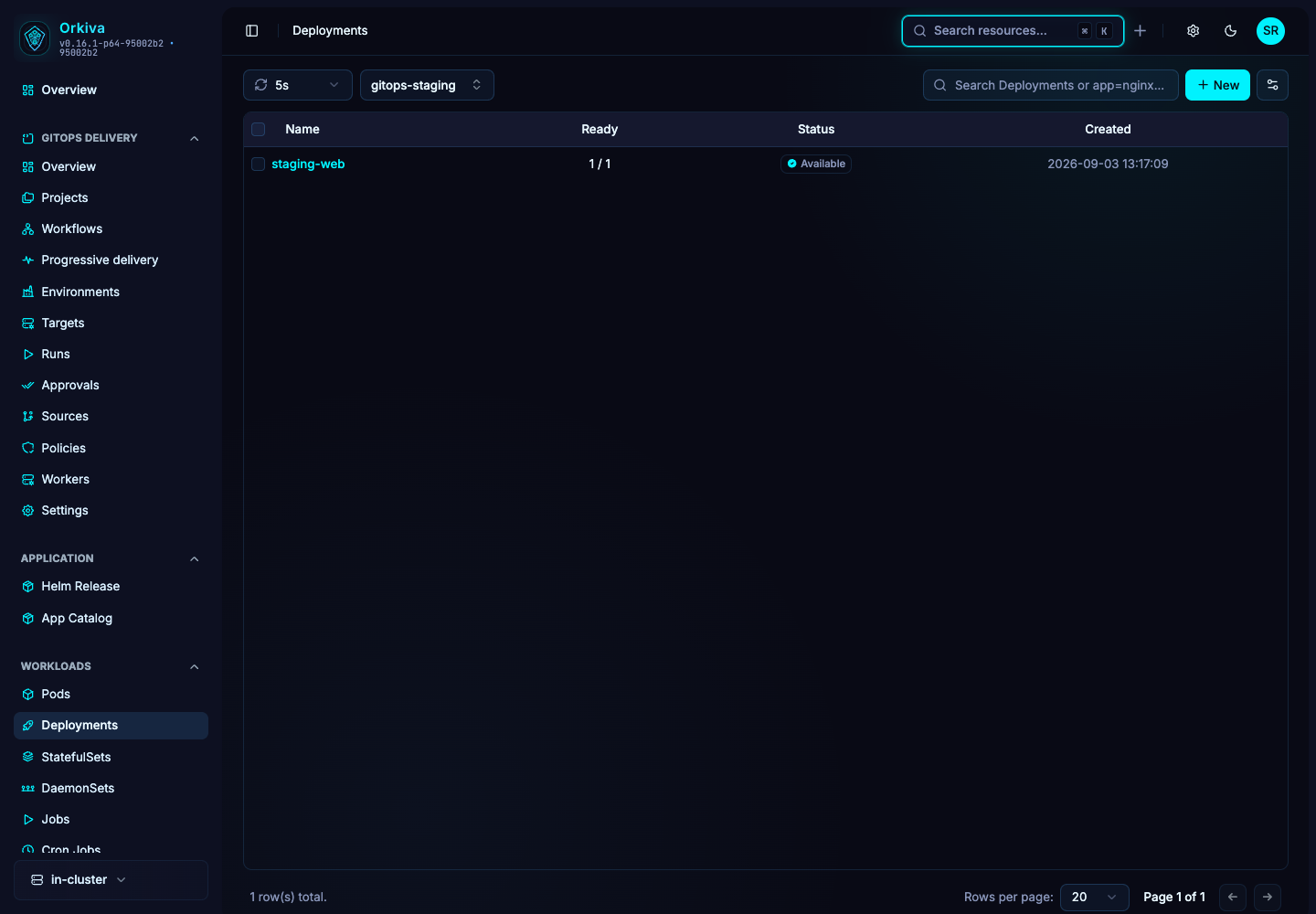
- Sign in to your Orkiva installation. Open the cluster selector in the sidebar.
- Select the cluster you intend to inspect. Resource requests carry this cluster context to the server.
- Open Overview or a resource list. Confirm that the selected cluster name still matches your task. If no clusters are available, ask an administrator to connect one or grant your role access.
The browser remembers the current cluster. A bookmark or a new tab does not replace the need to check it. GitOps targets have their own explicit cluster association; selecting a console cluster does not rewrite a Delivery target.
Use namespace and list controls#
- For a namespaced resource, select a namespace or All Namespaces. Cluster-scoped resources such as Nodes do not belong to a namespace.
- Use the list search to narrow visible rows. Where a page supplies additional column filters, combine them with the namespace selection.
- Choose a refresh interval: Off, 1s, 5s, 10s or 30s. Turn it off while examining a stable snapshot, then refresh when you need newer data.
- Open the column controls to show the information relevant to your task. Use the page-size and pagination controls for larger lists.
Search across resources#
Use the search control in the app header to find resources in the current cluster. Select a result to open its detail page, then check the resource kind, name and namespace. Global search and a resource table filter are different tools: a table filter narrows the current list; global search helps locate another resource.
A resource missing from search may be outside your allowed scope, not registered as searchable, or unavailable in the cluster. Try its resource page before treating a search miss as proof that the object does not exist.
Settings and personal preferences#
The Settings page is administrator-only. Use the user menu for your own account and security settings. Theme controls affect presentation; they do not change cluster permissions. Administrators can also configure which optional resource groups appear in the sidebar.