 orkiva
 Inspect a release#
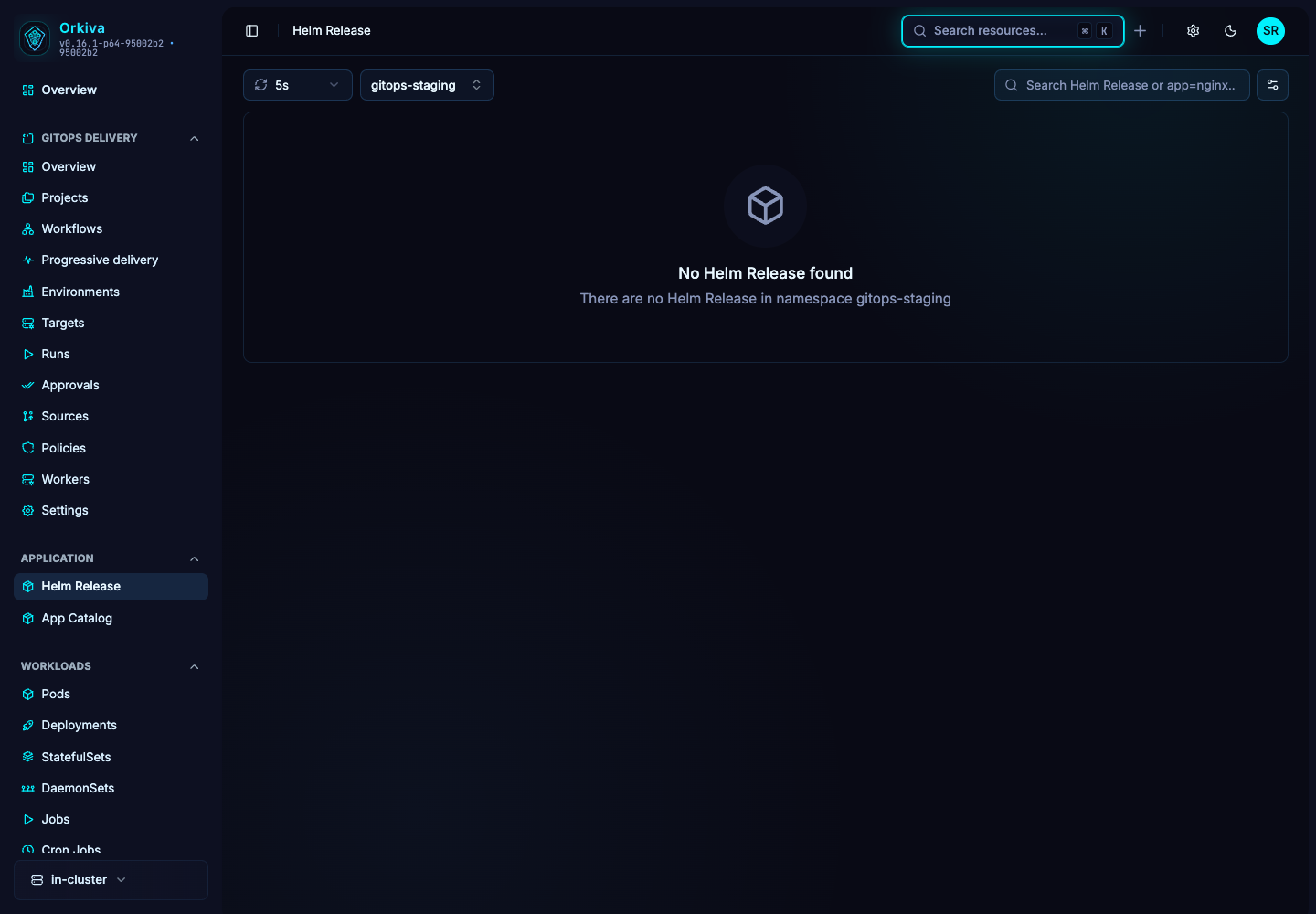
- Open Helm Release, choose the namespace and select a release.
- Read status, chart name/version, application version and revision.
- Use Values for the stored release values, Resources for managed objects, Manifest for rendered content and Logs for associated workload output.
- Use History to inspect earlier revisions and their recorded states.
Preview and apply an upgrade#
- Choose Upgrade and select the correct repository/chart version.
- Review current and default values. Enter the intended override values rather than blindly copying an unrelated chart version’s defaults.
- Run Dry Run and inspect the rendered preview.
- Apply the upgrade and observe the new release revision and resource health.
- If the result fails, inspect the error and available rollback/history controls. A rollback of manifests does not automatically reverse external data migrations.
Configure automatic upgrades#
| Field | Behavior |
|---|---|
| Enabled | Turns the configured automatic-upgrade schedule on or off. |
| Repository/chart source | Selects the source used to find the chart. A valid source must resolve before enabling. |
| Interval | Interval schedule in minutes; the UI requires at least one minute. |
| Daily time | Daily schedule in HH:MM form. Confirm the runtime’s scheduling time basis before relying on a customer maintenance window. |
| Timeout | Operation timeout in minutes; the UI requires at least one. |
| Rollback on failure | Requests the configured failure recovery behavior. Verify the resulting release after a failure. |
Automatic Helm upgrades are distinct from GitOps project polling. Avoid configuring two independent controllers to mutate the same release without a deliberate ownership plan.
Uninstall deliberately#
Use the release removal action only after reviewing its resources and storage implications. Verify the resulting Kubernetes objects and persistent data. If a separate controller owns or recreates the release, change that controller’s source rather than repeatedly uninstalling it.