 orkiva
 Open the intended container#
- Open a workload with the container editor, such as a Deployment, StatefulSet or DaemonSet.
- Select Containers and choose the exact application or init container to edit.
- Confirm its name and current image before changing anything. The dialog edits a copy of that container configuration until you save.
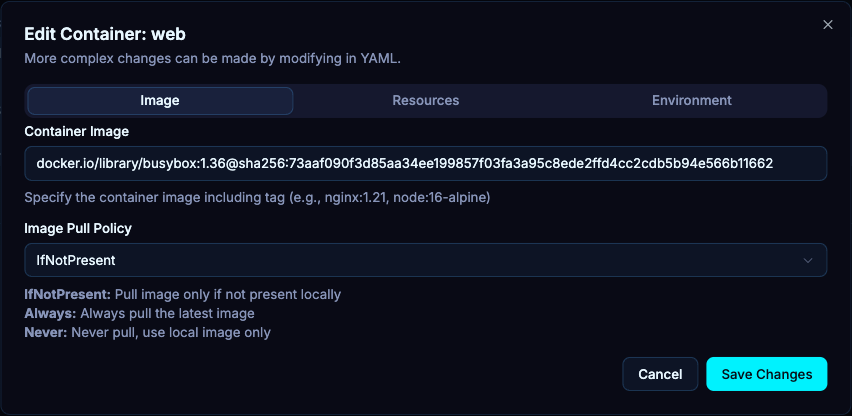
Image settings#
In Image, set the container image and image-pull policy. Tag suggestions depend on the image-tag lookup and registry reachability. Use the exact approved image/tag or digest for your application rather than assuming a suggested tag is suitable.
Changing a workload template can trigger replacement pods. Confirm registry access and pull credentials before saving; otherwise the new pods may fail with image-pull errors.
Requests and limits#
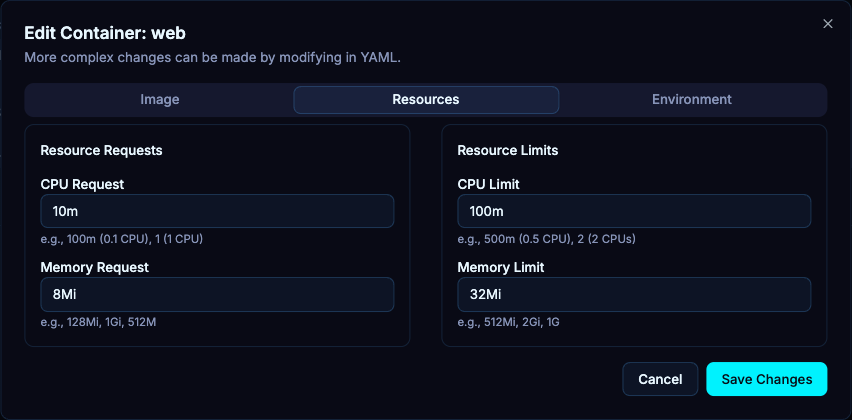
| Field | How to use it |
|---|---|
| CPU request | Set the intended CPU request in Kubernetes quantity notation, such as 100m. |
| Memory request | Set the memory request, such as 128Mi, based on the workload requirement. |
| CPU limit | Set the intended CPU cap when your workload policy requires one. |
| Memory limit | Set a reviewed memory cap and verify the application does not exceed it. |
The examples describe quantity syntax, not recommended sizing. Compare actual use, namespace policy and cluster capacity. A resource change can affect scheduling or runtime behavior.
Environment variables and sources#
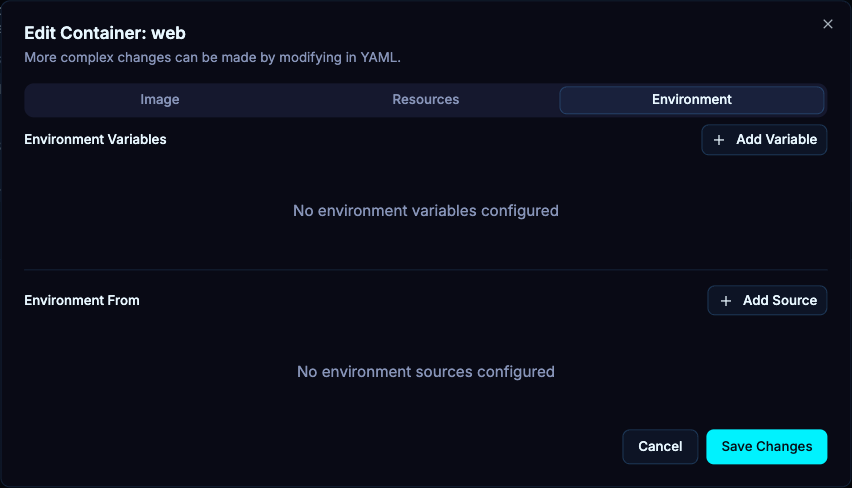
- In Environment, add or edit the named variable.
- Choose whether it is a literal value or one of the supported reference forms, then fill the fields shown for that type.
- For ConfigMap/Secret references, choose the intended object and key in the workload namespace. Review optional/reference settings when exposed.
- Use Environment From for a supported whole-source import and verify its prefix/source settings.
- Remove obsolete variables explicitly, then inspect the final container configuration before saving.
Do not copy a secret into a literal field when a Secret reference is the intended design. A missing source/key can prevent a container from starting.
Save and verify#
- Save the dialog and watch the workload’s resulting rollout.
- Inspect pod readiness, events and logs after the update.
- If the change is owned by Helm or GitOps, commit the matching change to that source so a later reconciliation does not undo it.
Use YAML for more complex container settings outside the three editor tabs. The Pod Resize Resources action is separate and is gated by cluster version/capability; it is not a general editor for every immutable Pod field.