 orkiva
 Prepare a destination#
Create and test the underlying destination in Settings → Operations first. Delivery routes choose from those destinations. A route with no working destination cannot deliver useful alerts even if it saves successfully.
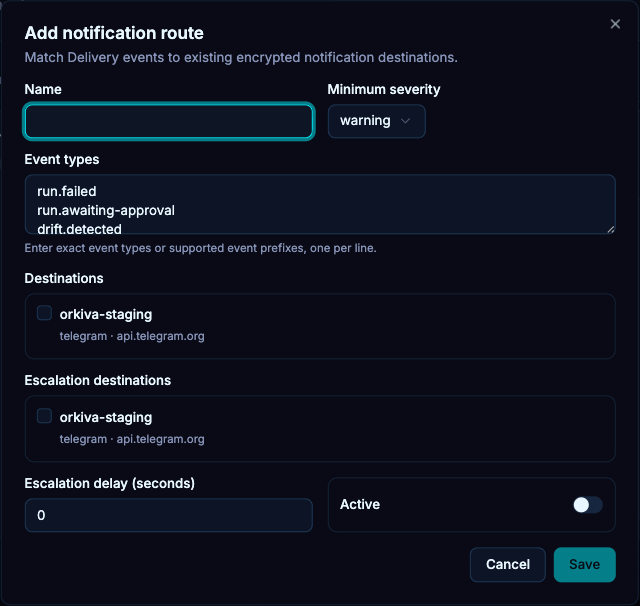
Create a Delivery route#
- In Delivery Settings, add a notification route and name it.
- Set the minimum severity and event-type filters.
- Select the primary destinations.
- If needed, choose escalation destinations and an escalation delay.
- Save and verify a suitable event through your controlled test workflow.
Separate routine notifications from escalation so repeated informational events do not look like unresolved critical failures. Use the exact supported event identifiers for your installation.
Review and acknowledge notices#
- Open the automation notices list.
- Inspect the associated project/run and the reported reason.
- Resolve or investigate the underlying condition.
- Acknowledge the notice through its action when it has been handled.
Acknowledgement records handling of a notice. It does not turn a failed run into a successful run, repair a target or replay a blocked deployment.