 orkiva
 General console settings#
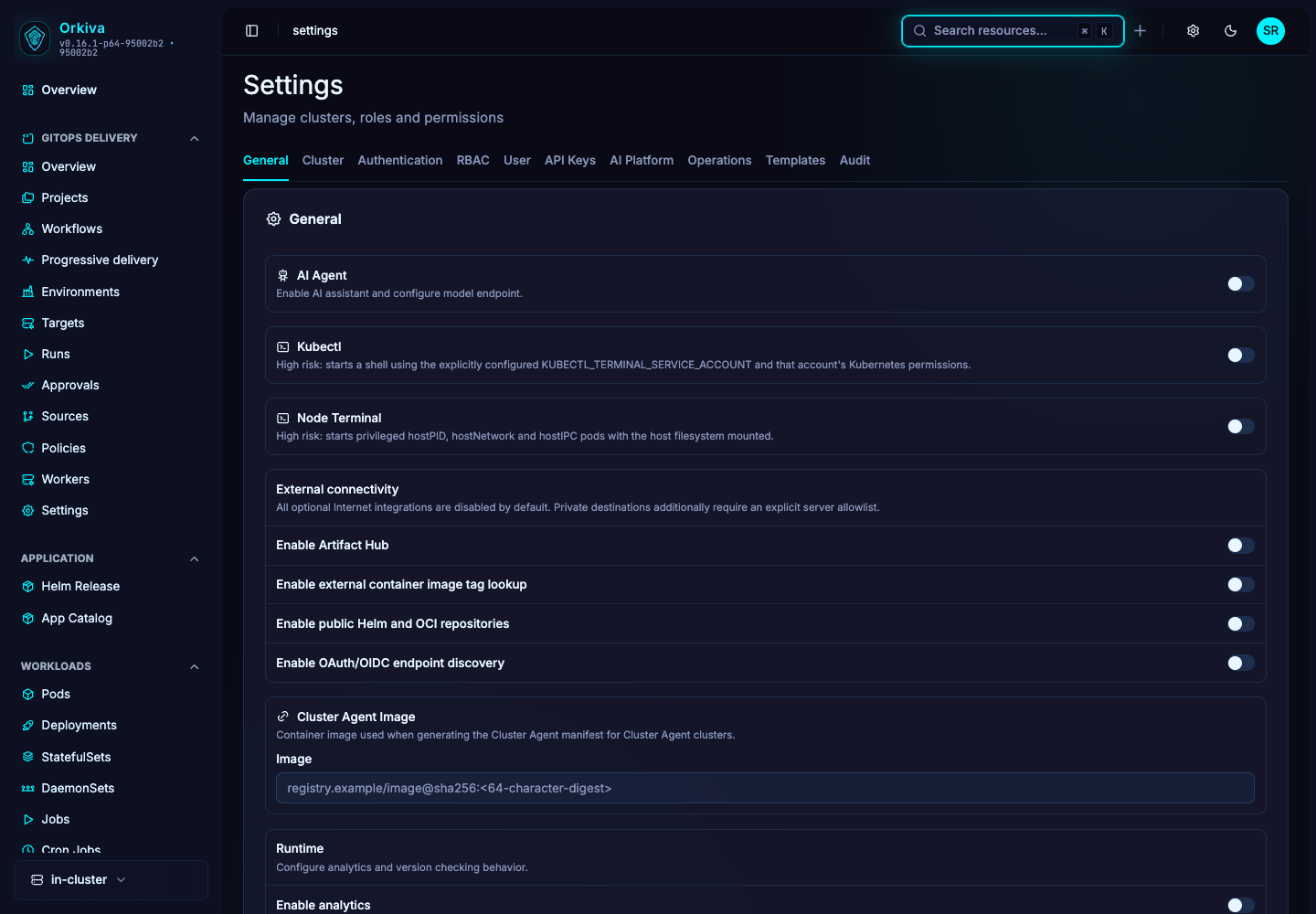
Open Settings → General. The page includes AI defaults, kubectl and node-terminal enablement/images, optional resource visibility, the Cluster Agent image, analytics/version-check switches and the login prompt. Save changes through the page and verify the affected feature in a separate user workflow.
| Setting area | Operational effect |
|---|---|
| Terminal enablement and images | Controls whether the console offers the feature and which helper image it uses. Kubernetes permissions and image access remain required. |
| Resource visibility | Controls optional navigation entries; hiding a link is not an authorization rule. |
| Cluster Agent image | Sets the image used for generated agent installation material. Match it to the release you support. |
| Analytics / version check | Controls the corresponding optional behavior. Review external connectivity requirements for your environment. |
| Login prompt | Adds your installation’s sign-in guidance; do not include secrets in public login text. |
Create a resource template#
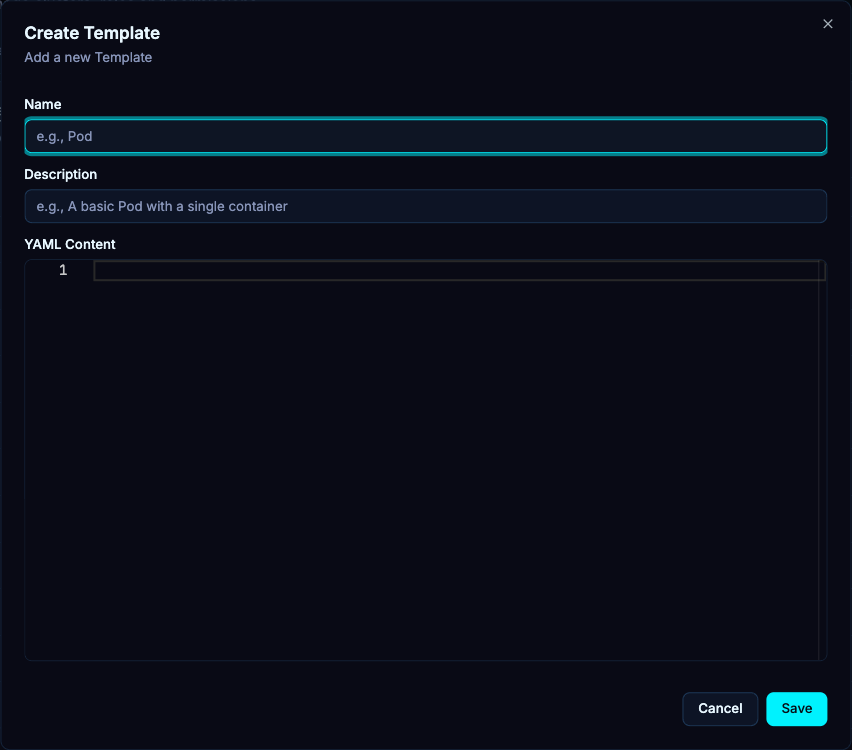
- Open Settings → Templates and choose the create action.
- Set the template name and resource content using the editor. Use a minimal manifest suited to its intended kind.
- Save and open the New resource flow to verify the template is available.
- Select the template, supply the destination-specific name and namespace, and review the final YAML before creating a resource.
Maintain templates#
Treat templates as starting points, not live controllers. Updating a template does not update previously created objects. Remove obsolete images, environment-specific addresses and unnecessary privileges before distributing a template across teams.
If the template is missing from a create dialog, verify it was saved and that the selected resource kind and your permissions match its intended use. A template can still be rejected by Kubernetes admission when applied.